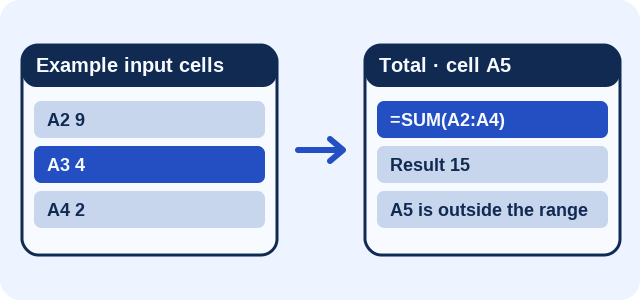
 Enlarge diagram

Build a small expense list and use one formula to add it. Have a browser and an account with access to Excel for the web.
Open Excel for the web and start a blank workbook. Select the workbook name at the top and rename it Practice expenses.
Enter each value in its own cell. The column letter is across the top and the row number is down the left.
Row Column A Column B 1 Expense Amount 2 Lunch 12 3 Bus fare 5 4 Supplies 8 5 Total Leave empty for now Select B5, type
=SUM(B2:B4), and press Enter. The colon means “from B2 through B4.” The total should show 25.Select B2:B5 and choose Currency from the number format menu on the Home tab, if the amounts represent money. The currency symbol follows your settings.
Change B4 from 8 to 10. The total should immediately update to 27. If it is still 25, confirm you edited B4 and that B5 still holds the formula. If the cell displays the formula as text, set its format to General and re-enter it, starting with the equals sign.
Check your work: Select B5. The cell shows 27 in your chosen number format and the formula bar shows =SUM(B2:B4).
Microsoft Support · Sum numbers in a range