Use a local practice PDF with at least five pages and a printer you can use. You can verify the preview and cancel without printing.
Open the PDF in Acrobat Reader and choose File > Print.
Check page numbers before printing - Print dialog
- Enter pages
- Confirm the preview
Cancel if the preview includes unintended pages.
- Select your intended printer and one copy.
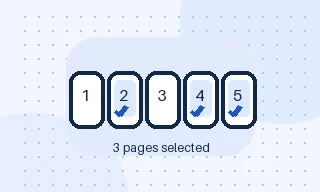
- Under Pages to Print choose Pages and enter 2, 4-5. That selects page 2 and the inclusive range from 4 through 5.
- Review the preview and page count. Select Print when they match, or Cancel if you only want practice.
Check your work
The preview includes three pages and excludes page 1 and page 3.
If you get stuck
If the output differs, clear the field and enter the range again. A document’s printed page labels can differ from its position in the file. Check the actual preview before committing to paper. If the range field stays inactive when navigating by keyboard, focus the Pages to Print options and use the arrow keys to select Pages before entering the range.