Follow these steps
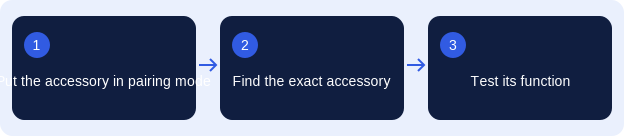
- Put the accessory in pairing mode. Use the accessory maker’s instructions. Turn on Bluetooth on your PC and make sure the accessory has power.
- Find the exact accessory. Open Settings, Bluetooth & devices, then Add device. Select Bluetooth and choose the device name that matches your accessory.
- Test its function. Type a short line or play sample audio. For a headset, check the selected output under Sound if playback stays on the speakers.
Check your result
The accessory appears connected and the input or audio test works. If it never appears, check whether it is still connected to another device and follow its documented pairing steps.