Save your open work. Write down when the slowdown happens: after signing in, in one app or all the time. Use the same simple task to compare results after each change.
Quick steps
Save your work, restart, and check whether the slowdown mainly happens after sign-in.
Press Ctrl + Shift + Esc, then open Startup apps. Review the entries before changing anything.
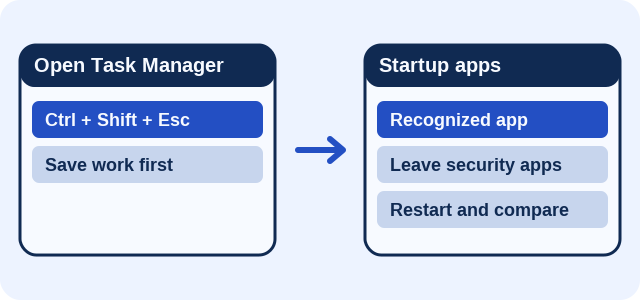
The shortcut opens Task Manager. The Startup apps view helps you find an optional app to test. Leave security and unfamiliar entries alone. Enlarge diagram Disable only one recognized optional app, then restart and compare. You can enable it again.
What success looks like
The same task should finish more reliably, or you should be able to name the process or condition that coincides with the slowdown.
If you get stuck
If the system stays slow after a restart, note the sustained resource usage and available disk space. Share those findings with manufacturer support or IT. Back up important files before a reset or hardware repair. Avoid registry cleaners and unfamiliar optimization software.
Full written instructions
- If only one app is slow, save and close it normally, then reopen it. If every app is slow, restart from Start › Power › Restart and wait for Windows to finish loading.
- Press Ctrl+Shift+Esc to open Task Manager. On Processes, look for sustained high CPU, memory or disk use during your test. Temporary spikes are common. If a recognized app is responsible, close it normally and repeat the test. Leave unknown, security and system processes alone.
- For slow sign-in, review Task Manager › Startup apps. Disable one app you recognize and do not need at sign-in, then restart and compare. Re-enable it in the same place if something you use stops opening automatically.
- Open Settings › System › Storage if the system drive is nearly full. Review cleanup recommendations item by item. Leave Downloads and personal files unchecked until you know you have a recoverable copy.
- On an unmanaged PC, review Windows Update and install applicable updates when you can restart. On a managed PC, ask your administrator before changing update or startup settings.