Follow these steps
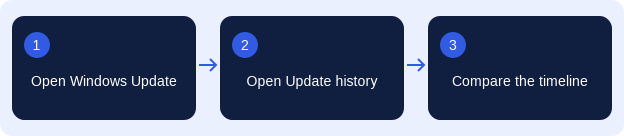
- Open Windows Update. Open Settings, then Windows Update.
- Open Update history. Expand the relevant category and note the update identifier and install date.
- Compare the timeline. Compare the date with when the issue began. A nearby date does not prove that the update caused the issue. Share the identifier with support if needed.
Check your result
You have the exact identifier and date for troubleshooting. Avoid removing a security update while you are still gathering evidence.