Visual technology reference
Recognize ports and equipment
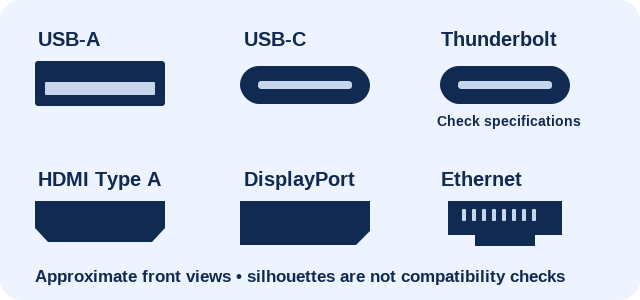
Use the shape to narrow the possibilities. Verify the model, port, cable and accessory specifications before connecting or buying anything.
- USB-A
- Wide rectangle with an internal tongue. Common for keyboards, mice and drives. Port color alone does not establish data speed or charging capacity.
- USB-C
- Small reversible oval. It may support charging, data, or display output in different combinations. A cable can physically fit and still lack a needed capability.
- Thunderbolt
- Thunderbolt 3 and later use the USB-C shape. Confirm Thunderbolt support and generation for the host, cable and accessory in the documentation. Older generations used a different connector.
- HDMI and DisplayPort
- Full-size HDMI Type A has two tapered corners. Standard DisplayPort has one clipped corner. Both can carry video, but resolutions, refresh rates and adapter direction vary. USB-C display adapters require verified video support.
- Ethernet
- Wired network jacks often appear as a wide rectangular opening with eight contacts and a recess for the clip. Confirm the network interface and supported speed. Never force a connector.
- Chargers and power adapters
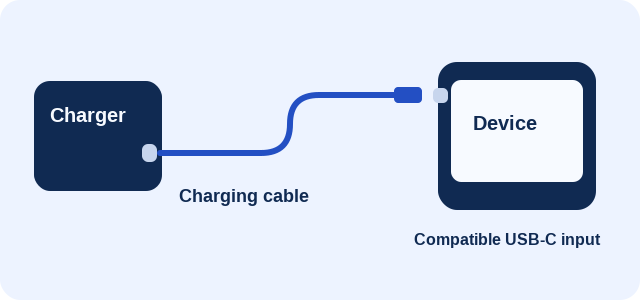
- Read the adapter label and the device requirements. For USB-C charging, verify the protocol, supported power and cable rating. For a barrel connector, verify the exact fit, voltage, polarity and current requirements from the maker.
- Docking stations
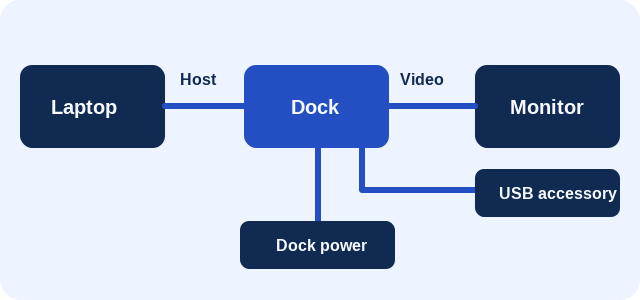
- A dock connects to the host and may provide video, USB ports and power. Confirm host video support, display limits and delivered rather than advertised input power. See the dock connection diagram and check a model.
- Storage
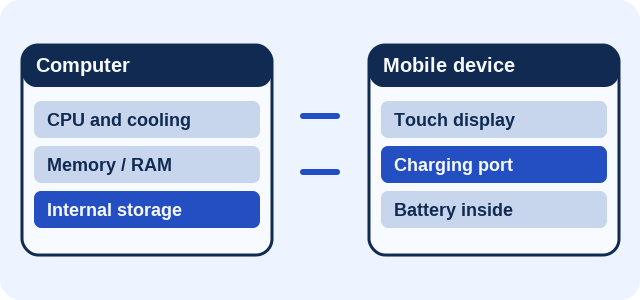
- An external drive may use USB while internal drives may use SATA or an M.2 slot. Some M.2 drives use SATA and others use NVMe. Verify the interface, physical size and enclosure or slot support.
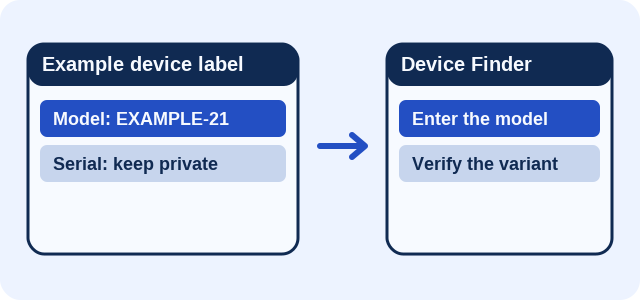
Identify your exact model · USB-IF power delivery · Intel Thunderbolt and USB-C · VESA DisplayPort over USB-C
Model labels and connections
Gestures and shortcuts
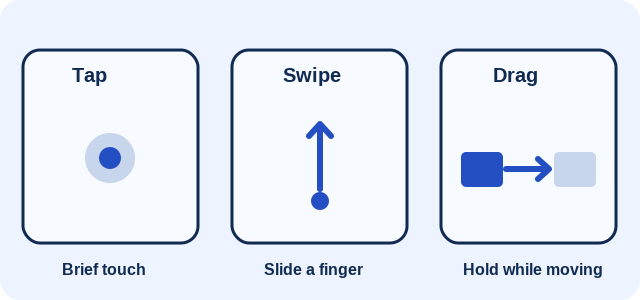
- Windows 11: Windows + Shift + S opens screen snipping. Drag across only the part you want. Windows + U opens Accessibility. Choose Text size to adjust the text. Microsoft shortcuts
- Mac: Shift + Command + 4 starts a selection. Drag the crosshair, then release. Esc cancels. Apple screenshot guide
- iPhone with Face ID: Swipe up from the bottom, pause near the middle, and lift your finger to show recent apps. Tap the app card. On an iPhone with a Home button, double-click Home instead. Adjust iPhone text size.
- Android: With gesture navigation, swipe up from the bottom, pause and lift to see recent apps. With three-button navigation, use Recents. Menu labels vary. Search Settings for Font size to increase readability. Google navigation guide.
- iPad: Swipe up from the bottom and pause to switch apps. To keep two apps visible, start with the iPad app-switching guide. Use a single app if the split view makes text too small.
Spot the warning signs
Simulated examples use fictional brands and have no forms, real links, or contact details. Never follow instructions shown in suspicious messages.
Simulated phishing email
Fictional payroll desk · Unexpected notice · Verify an unrequested change
Unexpected message: A fictional payroll notice asks you to verify a change you did not request.
Look for: An unexpected request for account access, urgency, and a sender that does not match your known contact.
Do: Report the email and check with payroll through a known channel.
Simulated delivery text
Fictional parcel service · Unrequested fee · Respond now
Unexpected message: A fictional delivery service demands a fee to release a package.
Look for: A payment request out of context and pressure to respond.
Do: Use the carrier’s official app or website to check your order. Report and delete the message.
Simulated fake sign-in page
Address differs from the known service · Sign-in request appears after an invitation
Unexpected page: A page that looks like a sign-in screen appears after opening an invitation.
Look for: A sign-in that you did not start or an address that does not match the known service. Appearance and a padlock are insufficient.
Do: Close it and open the service from your own bookmark.
Simulated support pop-up
Urgent warning · Unsolicited call or remote access requested
Unexpected alert: A pop-up demands a phone call or remote access.
Look for: Pressure to call or install a support tool you did not request.
Do: Close the tab or browser. Use trusted support or workplace IT if you already acted.
Simulated MFA request
- Check whether you signed in
- Deny an unexpected request
- Review account activity
Never give a one-time code to a caller. If prompted repeatedly, contact the service or workplace IT through a known route.
Password security
- Create a long, unique password
- Save in a trusted manager
- Enable MFA where available
Use a different password for each account. Change an exposed password from a trusted device through the official service.
Simulated urgent payment scam
New payment details · Gift cards requested · Asked to skip approval
Unexpected request: Someone impersonating a manager asks for gift cards or a payment change.
Do: Pause. Verify with the real requester at a known number and follow the organization’s approval process.
Read the phishing quick guide · FTC phishing advice · FTC pop-up scam advice