This walkthrough uses Google Pixel menus. Android manufacturers may use different names. If a work profile or school device is managed, ask its administrator before resetting anything.
Quick steps
On Pixel, open Settings, then Network & internet, then Internet. Other Android phones may label the Wi-Fi menu differently.
Confirm Wi-Fi is on and selected, then test another device on the same network.
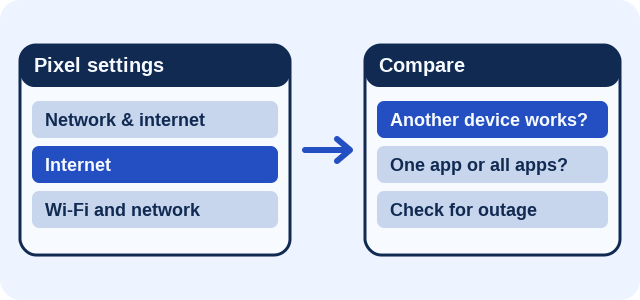
On Pixel, open Internet from Network & internet, then test the network on another device to isolate the failure. Enlarge diagram If multiple devices fail, check the network or service. Keep your Wi-Fi password before forgetting a network.
What success looks like
The phone connects to the right network and loads a known page while using Wi-Fi. Other devices continue working.
If you get stuck
If no Wi-Fi networks work, note the model, Android version and network behavior. Contact your manufacturer or IT. A network settings reset can affect saved networks or paired devices, so use it only after reviewing the instructions for your exact model.
Full written instructions
- On a Pixel, use Settings › Network & internet › Internet to check that Wi-Fi is enabled. Turn Airplane mode off if it was enabled unintentionally. Confirm the network name.
- Test another device on that same network. If you use a phone for comparison, turn its mobile data off briefly so that a successful test really uses Wi-Fi. Then restore your original setting. If both devices fail, use the network guide below.
- Move nearer the access point, briefly turn Wi-Fi off and back on, then reconnect. Restart the phone if needed. If the phone works on a different trusted Wi-Fi network, focus on the original network rather than resetting the phone.
- On a trusted personal network, forget and rejoin only if you have the correct network credentials. Select the saved network from Internet settings, choose Forget, then reconnect. Ask the administrator first if the network uses work or school certificates.
- If the phone says it is connected but only one app fails, open another known site or app. For a guest network, confirm the correct sign-in process with the venue before entering information.