Everyday Technology Workflows · Phones and Tablets
Recover a frozen app, failed update or network connection
Beginner · 10–15 minutes with practice · iPhone iPad Android
Read It
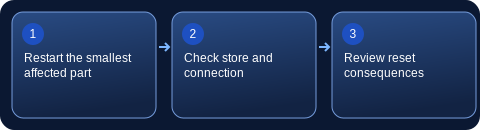
- Restart the smallest affected part. Save work if the app responds. Close and reopen the affected app, then restart the device normally if needed. Check free space and official App Store or Play Store update status.
- Check store and connection. On Android, check app permissions and try Clear cache if appropriate. On iOS/iPadOS, check whether the app can be updated or safely offloaded before deleting it. Test another app or Wi-Fi network to locate the failure.
- Review reset consequences. Use network reset only after less disruptive checks. On iOS/iPadOS it is under General → Transfer or Reset → Reset → Reset Network Settings. On Android search for reset network settings and read the exact device’s confirmation prompt.
Practice It
Write down saved Wi-Fi or VPN settings you can safely recover, but do not perform a reset for the exercise.
Common mistakes and safe recovery
Network reset can remove saved Wi-Fi networks/passwords and some VPN and network settings. Some Android reset options also remove Bluetooth pairings. Clear storage and factory reset can remove much more data.
Official references
Related lessons
- Technology Essentials 12: Install system updates and reboot when prompted.
- Technology Essentials 14: Force-quit frozen apps and use Task Manager or Activity Monitor.
- Technology Essentials 19: Manage storage space and clear temporary or unused files.
- Technology Essentials 100: Perform basic troubleshooting through safe restarts, cable checks, connectivity checks and app restarts.
- Check for a software update on iPhone or iPad
- Fix Wi-Fi on Android, starting with Google Pixel
- Close an unresponsive app on a Mac