Hi, Frankie here. In the Learning Academy, you’ll find written lessons you can take at your own pace. Pick a topic that fits your device, open the guide, and follow the steps as you go. You can always come back to the transcript or written instructions.
Find five practical written lessons and follow the steps at your own pace.
Welcome to IAMTECH Academy: find your first tutorial
A lesson finder organizes topics and steps so you can choose one task at a time.
Follow the steps
Open the Learning Library and choose Tutorials if you want a step-by-step guide.
Set Tutorial level to Beginner and choose a relevant device or topic if you know it.
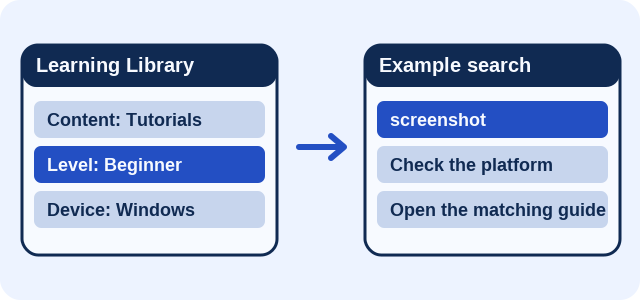
Choose filters before you search. Select Tutorials and Beginner, then narrow by device if you know it. Try “screenshot” and check that the result matches your device. This is a schematic.Inspect illustrationOpen full-size diagram ↗
Search for one task, such as screenshot. Open a result that matches your device and follow one step at a time.
If you see no results, clear one filter or search a shorter phrase. Save a useful guide with the on-site bookmark option.
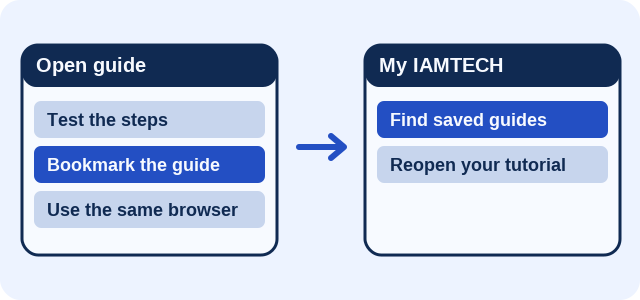
Reopen a useful guide. Bookmark a lesson from its guide, then use My IAMTECH to find it again in the same browser.Inspect illustrationOpen full-size diagram ↗
What success looks like
A guide matches your device and you can complete its first step. If you saved it, it appears in your saved guides in the same browser.
Windows 11 no sound? Check the app and output first
A speaker and audio controls introduce the app-volume and output checks.
Follow the steps
Play something familiar at a comfortable volume. Try a second app. If only the first app is quiet, check its own player mute button.
Open Settings → System → Sound → Volume mixer. With the app running, find it under Apps. Check its volume and mute before changing the system volume.
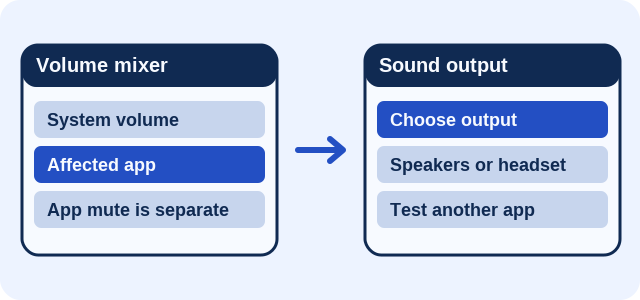
Check the affected app before changing everything. Volume mixer has separate app controls. Check whether the app is muted, then go back to Sound and verify the selected output.Inspect illustrationOpen full-size diagram ↗
Go back to Sound. Under Output, choose the speakers or headphones you want to use. Open that output’s properties and use Test if available. Return to the original app and retest.
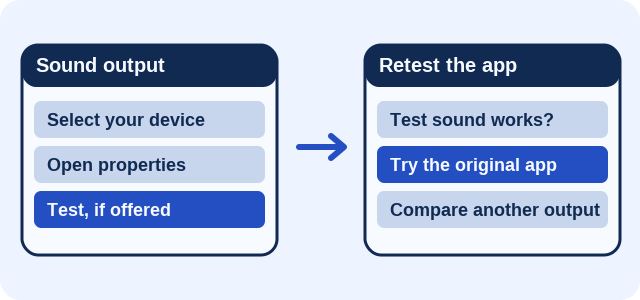
Test and compare at a comfortable volume. In Sound, select the intended output. Use Test if available. Then return to the original app and try another app if the original is still quiet.Inspect illustrationOpen full-size diagram ↗
If sound is still missing, try a known-good output or open the Windows Get Help audio troubleshooter. Read the consent prompt before deciding whether to continue.
What success looks like
The app and a second test play through the intended device at a comfortable volume. If the system test works but one app remains quiet, keep troubleshooting that app before changing hardware.
A device and accessory introduce the exact-model and connection checks.
Follow the steps
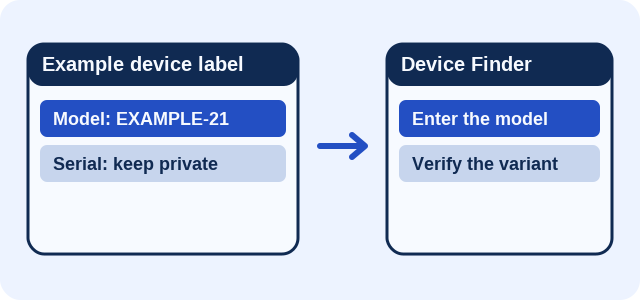
Open Device Finder. Read the public model identifier from the product label or settings. Keep serial numbers and account identifiers out of the search.
Find the public model identifier. Model codes and names identify a variant. The example is fictional. Leave serial numbers and account details out.Inspect illustrationOpen full-size diagram ↗
Choose the exact matching year or variant and confirm the match. A family name alone may cover several versions.
Continue to Smart Shopping and choose the accessory category. Read the fit label, the reason, and the manufacturer source. Conditional means inspect the stated requirement. Unverified means seek evidence before buying.
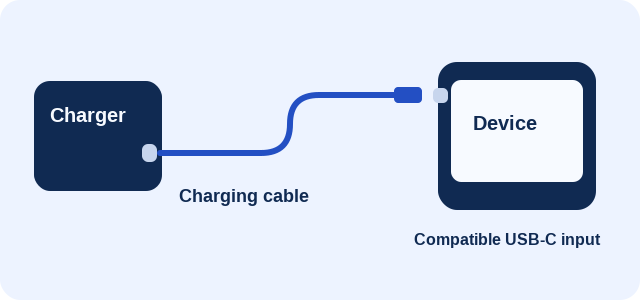
Check each link in the charging path. A USB-C cable can fit both the charger and device without meeting their power requirements. Verify the exact model, charging protocol and cable rating.Inspect illustrationOpen full-size diagram ↗
Clear the selection if you picked the wrong model, then repeat with the correct identifier.
What success looks like
The accessory’s exact model and required capability have a documented match to your device. If the evidence is conditional or missing, know what still needs verification before buying.
Compare before you buy: two accessories for one device
Two panels introduce a side-by-side product comparison.
Follow the steps
Confirm your model and accessory category. Select Compare on two products with the same intended use.
Open the comparison and start with the compatibility row. Read the reason, then compare only the specs that matter for your setup.
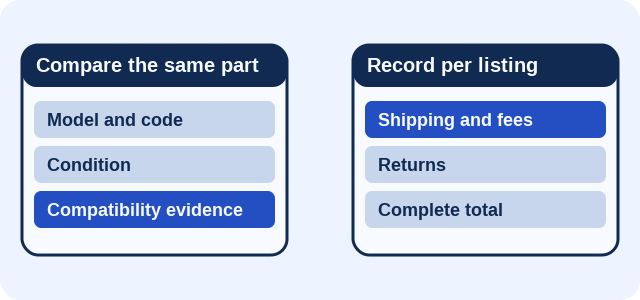
Compare like with like first. Match part number and condition. Read the compatibility explanation before comparing price, delivery, fees and returns.Inspect illustrationOpen full-size diagram ↗
Follow the manufacturer source and match the part number. A retailer search may return variants or used items. Verify the exact listing, condition, shipping, return terms and final total.
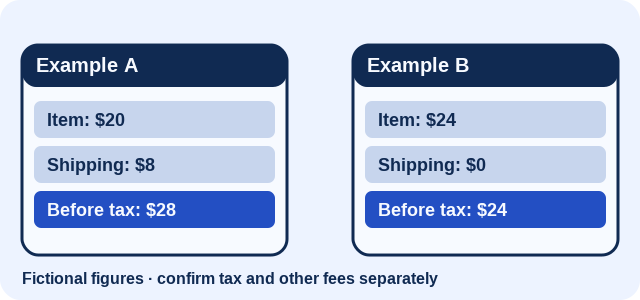
Calculate the delivered total. Fictional example: the $20 listing plus $8 shipping is $28 before tax. The $24 listing with $0 shipping is $24 before tax. Confirm tax, other fees and return costs before deciding.Inspect illustrationOpen full-size diagram ↗
If price, shipping, or availability is unknown, leave the comparison undecided until the retailer confirms the missing information.
What success looks like
You can explain which exact listing fits and compare complete totals for listings in the same condition. If a total cannot be confirmed, mark it undecided.
A desktop tower introduces budgeting and checking parts together.
Follow the steps
Open PC Build Advisor, choose Gaming, and enter the total you can afford. Think about the games and display resolution you need.
Treat the suggested build as a planning example. Set aside what you will spend on tax, shipping, the operating system and peripherals.
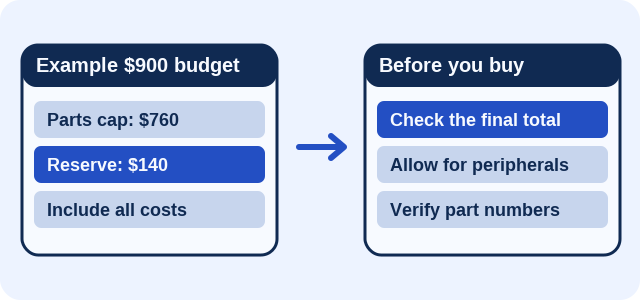
Reserve money for the whole setup. Fictional example: from a $900 total, reserve $140 for costs outside the component list. That leaves $760 to compare parts. These figures are planning examples, not quotes.Inspect illustrationOpen full-size diagram ↗
Before buying, check the motherboard CPU support and BIOS version, memory specification, cooler and graphics clearance, and power-supply output and connectors.
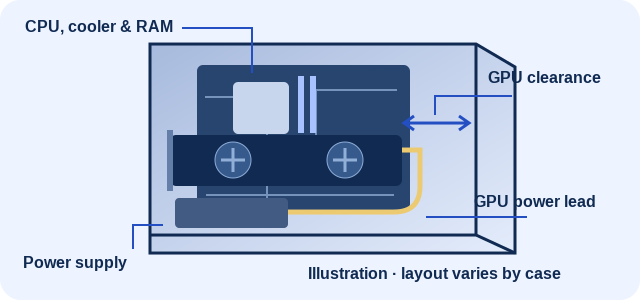
Check the parts as a system. In this illustrated cutaway, the cooler and RAM sit above the graphics card. Check room at the end of the card and make sure a suitable lead from the power supply can reach it without a sharp bend. Verify each part’s requirements with the manufacturer.Inspect illustrationOpen full-size diagram ↗
Write down exact part numbers. If you cannot confirm a requirement in the manufacturer documentation, pause before buying that part.
What success looks like
Each intended part has an exact model number and documented fit, and the final cost leaves room for the reserve. Unresolved checks remain on the list instead of becoming purchases.