Practice with an ordinary Safari page and a disposable note. Check Settings › General › About for your iPadOS version and model name. These directions cover iPadOS 18 and 26. Apple lists supported models for Windowed Apps and separately lists models that can move Stage Manager windows onto an external display. A monitor or dock is unnecessary for this exercise.
Quick steps
Check your iPadOS version and device model in Settings, then General, then About.
On supported iPadOS 26 models, use Windowed Apps and drag Notes from the Dock to the side. On iPadOS 18, choose Split View from the three-dot menu.
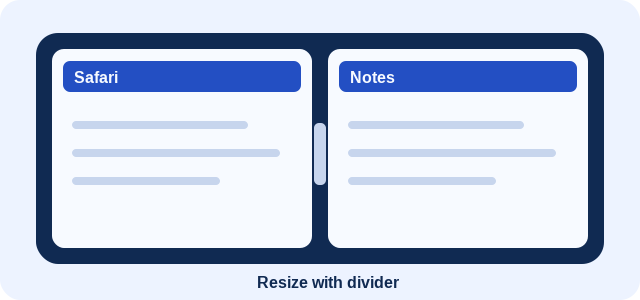
Safari sits on the left and Notes on the right. A center divider gives each pane more or less space. The full guide explains how to enter this layout for your version. Enlarge diagram Move the center divider to adjust the layout. If the panes are too small, return to full screen and switch apps.
What success looks like
Safari and Notes remain visible together, and you can read the page while typing in the note. If they are too narrow to read comfortably, use one app at a time and switch between them.
If you get stuck
If you cannot find Windowed Apps, recheck the version and Apple’s model list. On iPadOS 26.0 or 26.1, use side-by-side windows if available. The new Slide Over controls require 26.2. Some apps offer fewer layout options, so retry with Safari and Notes. If the device or apps do not offer the layout, swipe up from the bottom, pause in the middle, then pick the other app in the App Switcher. Stage Manager is optional. Check Apple’s separate external-display list before considering a display or adapter.
Full written instructions
- On a supported iPad running iPadOS 26, open Settings › Multitasking & Gestures and select Windowed Apps. Open Safari full screen. Reveal the Dock with a short swipe up from the bottom, then drag Notes from the Dock to the left or right edge and release when it takes that side. If Notes is missing from the Dock, locate it in the App Library. Move the middle divider to give your note more room.
- On iPadOS 18, open Safari and tap the three-dot Multitasking button at the top. Choose Split View and select Notes from the Home Screen or Dock. Drag the center divider if you want to resize the panes. To go back to one app, use the Multitasking button in the app you want to keep and choose Full Screen.
- On iPadOS 26.2 or later, use Slide Over if you want one small window to float above the others. Touch and hold the window controls and choose Enter Slide Over. To return to an ordinary window, touch and hold those controls and choose Exit Slide Over. On iPadOS 18, Slide Over is selected from the three-dot Multitasking menu instead.
- Type one practice sentence in Notes while keeping Safari visible. On iPadOS 26, use an app's window controls to zoom it back to full screen, or select Full Screen Apps in Multitasking & Gestures to return to the usual layout.