Everyday Technology Workflows · Phones and Tablets
Use split-screen, Slide Over and Picture-in-Picture
Beginner · 10–15 minutes with practice · iPad iPhone Android
Read It
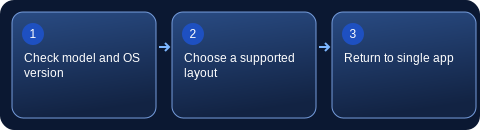
- Check model and OS version. iPadOS 26: Settings → Multitasking & Gestures → Windowed Apps. Resize supported apps side by side. In iPadOS 26.2 or later, hold the window controls and choose Enter Slide Over where supported. Older iPadOS versions use different controls.
- Choose a supported layout. On a supported Android phone or tablet, open Recents and look for Split screen from the app icon menu. Android variations and app eligibility apply.
- Return to single app. Picture-in-Picture depends on app and device support. On iPhone, use a supported video app’s PiP control and return to Home as directed by the app. iPhone does not offer iPad’s Slide Over window workflow.
Practice It
Open a note beside public content using supported controls, then close the extra window.
Common mistakes and safe recovery
If the menu isn’t offered, use the app switcher. Confirm OS release and the app’s playback or account restrictions before changing settings.