Check whether the alert names iPhone storage or iCloud storage. They are separate. A larger iCloud plan does not increase the device's physical capacity.
Quick steps
Open Settings, then General, then iPhone Storage.
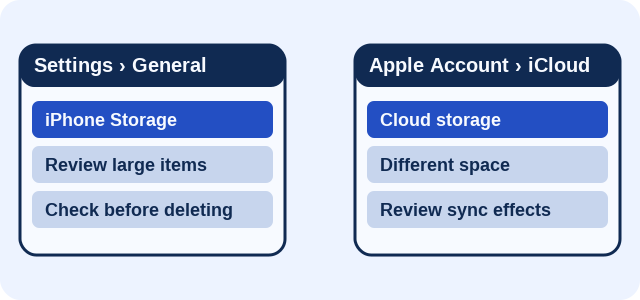
iPhone Storage is under General. The separate iCloud page reports cloud space. Review the effects of syncing before removal. Enlarge diagram Wait for the list and check which categories or apps use the most space.
Check backups and syncing before deleting. iCloud storage and iPhone storage are separate.
What success looks like
Free space increases while the documents, photos and apps you wanted to keep remain accessible.
If you get stuck
If a category does not shrink right away, give the storage breakdown time to refresh. If a work or school phone restricts changes or you lack a restorable backup, stop and ask the owner before deleting or resetting anything.
Full written instructions
- Open Settings › General › iPhone Storage. Wait for the category breakdown and note whether apps, downloaded media, photos or another category takes the most space.
- Review the recommendations before applying them. Start with downloads you can get again within their original app. Verify that a local file is disposable or independently backed up before removing it.
- For an infrequently used app, look for Offload App. Offloading removes the app but keeps its local documents and data. Before offloading a critical app, confirm you can reinstall it. Delete App removes the app and associated data from the device.
- Check whether iCloud Photos is enabled before deleting pictures. Deleting a synced photo can remove it from your other synced devices. Save and verify a separate copy of photos you want to keep before changing synced albums or emptying Recently Deleted.
- Return to iPhone Storage and check the remaining space. If you need to check the cloud quota instead, open Settings, tap your name and choose iCloud.