Everyday Technology Workflows · Phones and Tablets
Clear cache safely or offload an app
Beginner · 10–15 minutes with practice · iPhone iPad Android
Read It
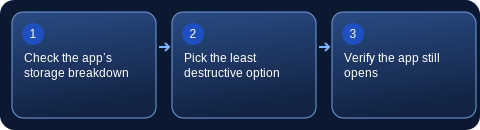
- Check the app’s storage breakdown. On Android, open Settings → Apps → your app → Storage & cache where provided. Clear cache removes temporary files. Clear storage can permanently delete app data on that device.
- Pick the least destructive option. On iPhone or iPad, Settings → General → iPhone or iPad Storage → app. Offload App frees the app binary and keeps documents and data. Delete App also removes its associated local data.
- Verify the app still opens. Before any removal, confirm that required content is backed up or synced and the app is still available for reinstall. iOS/iPadOS does not provide a universal per-app cache button.
Practice It
Compare options for one nonessential app. Stop before Delete App or Clear storage unless you deliberately intend to remove its data.
Common mistakes and safe recovery
Offline downloads, sign-ins or unsynced drafts can disappear after data removal. Restore from backup only according to the app’s documented options.
Official references
Related lessons
- Technology Essentials 13: Install and uninstall apps safely from official stores or trusted sources.
- Technology Essentials 19: Manage storage space and clear temporary or unused files.
- Technology Essentials 100: Perform basic troubleshooting through safe restarts, cable checks, connectivity checks and app restarts.
- Free up iPhone storage without losing important files
- Improve Android battery life using your phone’s built-in tools