
Save your work and pick an ordinary task you can repeat. Figure out whether the delay affects one app, startup or the whole Mac. Settings names can vary a little by version.
If only one app is slow, try closing it normally and reopening it. If it will not respond, use the Force Quit guide below and expect to lose unsaved changes in that app.
Compare independent performance signals - Restart after saving
- Review Activity Monitor
- Check storage
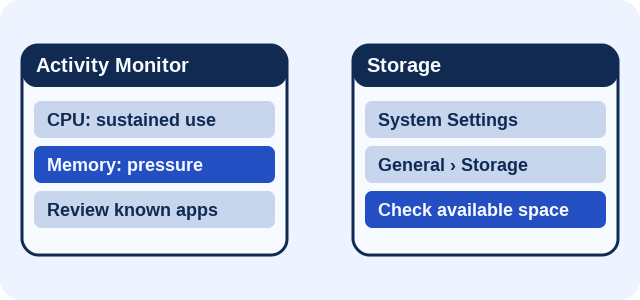 Enlarge diagram (new tab)
Read CPU and memory pressure in Activity Monitor. Check available disk space separately, and close only optional apps you recognize.
- Open Activity Monitor using Spotlight. Reproduce the slowdown, then check the CPU tab for sustained use by a recognized app and the Memory tab for its pressure graph. Close a few tabs or apps normally and repeat the test. High usage during a demanding task can be normal.
- Check Apple menu › System Settings › General › Storage. Review large items you recognize. Save verified backups before removing files, and avoid deleting system folders or files used by work apps.
- If the Mac is slow mainly at sign-in, review General › Login Items, called Login Items & Extensions on some versions. Remove an optional app you recognize from the open-at-login list, restart, and compare. Leave work or security items for your administrator.
- If the issue persists, note the affected app, available space and resource usage and check for supported app or macOS updates. Schedule a restart when it will not interrupt work.
Check your work
You can reproduce the improvement or explain when the slowdown occurs and what is consuming resources.
If you get stuck
Stop if you encounter repeated crashes, disk warnings or unexpected shutdowns. Make a recoverable backup and ask Apple or IT for help. Do not erase the Mac or run unsupported cleanup utilities as a first step.