Follow these steps
Focus a blank document. Copy two harmless practice lines separately. Use your app’s Copy command or Ctrl+C. Keep passwords, financial details and recovery codes out of the practice clipboard.
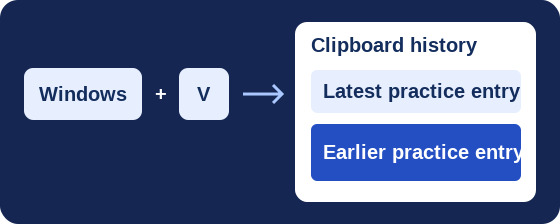
Press Windows key + V. If Windows offers Turn on, choose it, then copy the practice lines again. Open the history and select the earlier line to paste it into the document.
Clear your practice entries. Open the item menu in Windows key + V to delete individual entries. Unpin pinned practice entries before clearing history, because pinned items can survive Clear all and a restart.
Keep the history on this PC if that is all you need. In Settings → System → Clipboard, leave cross-device syncing off. On a managed PC, ask your IT administrator before trying to change a disabled option.
Check your result
Choose the earlier practice line. The document should show the text you selected.