Everyday Technology Workflows · Cross-Device Essentials
Configure cloud storage and keep an offline copy
Beginner · 10–15 minutes with practice · Windows macOS iPhone iPad Android
Read It
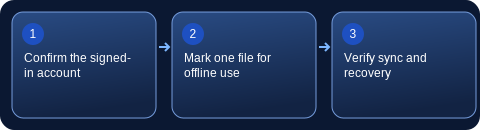
- Confirm the signed-in account. Windows 11 and macOS: sign into the official OneDrive, iCloud Drive, Google Drive or Dropbox client. Choose a test folder. Check the provider’s status badges for online-only, downloaded and syncing states.
- Mark one file for offline use. On iPhone, iPad and Android, open the official provider app and mark one harmless file available offline if your account supports it. Check which account owns the file.
- Verify sync and recovery. Make a separate backup of important data. Confirm sharing roles independently of whether the file is available offline.
Practice It
Open the test file while briefly offline, reconnect, and verify it on a second signed-in device.
Common mistakes and safe recovery
Deleting in a synced location can remove copies elsewhere. Releasing an offline copy and deleting a cloud file are different operations.
Official references
Related lessons
- Technology Essentials 34: Sync files using iCloud, OneDrive, Google Drive and Dropbox.
- Technology Essentials 35: Share cloud links and configure view or edit permissions.
- Technology Essentials 36: Back up important data to external drives or the cloud.
- Technology Essentials 37: Recover deleted items from Recycle Bin, Trash or Recently Deleted.
- Save an independent copy of an iCloud Drive file
- Make one Google document available offline
- Restore one Google Drive file from Trash
- Share a OneDrive file with view-only permissions