Everyday Technology Workflows · Cross-Device Essentials
Set up a password manager, MFA and passkeys
Beginner · 10–15 minutes with practice · Windows macOS iPhone iPad Android
Read It
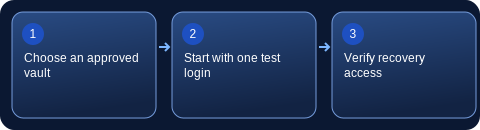
- Choose an approved vault. Windows 11: install your chosen manager from its official source and enable its browser extension only if required. Sign in to a test service and choose a passkey from the service’s security settings if offered.
- Start with one test login. macOS, iOS and iPadOS: use Apple Passwords on supported releases (macOS Sequoia 15, iOS/iPadOS 18 or later for the standalone app) or your approved manager; check the active autofill provider.
- Verify recovery access. Android: choose the intended credential provider under the device’s passwords or autofill settings. Enroll MFA from the service; test a sign-in before deleting an older method.
Practice It
Use a test account to save one login, verify autofill on the exact domain, and confirm a backup sign-in method.
Common mistakes and safe recovery
Removing a passkey or second factor can lock you out. Secure recovery codes in a separate private location. Never approve an unexpected MFA prompt.
Official references
Related lessons
- Technology Essentials 91: Create strong, unique passwords for every account.
- Technology Essentials 92: Use password managers to generate and store passwords.
- Technology Essentials 93: Enable two-factor or multi-factor authentication.
- Turn on Google Account 2-Step Verification
- Store Google backup codes for account recovery
- Check whether a device is suitable for a Google passkey