
Write down the exact laptop generation, dock model, monitor count, resolution and refresh rate you need. A USB-C connector describes the shape. It does not guarantee video, charging or Thunderbolt support.
Use the laptop manufacturer’s specifications to identify which port supports video, data and charging. For native video over USB-C, verify a documented mode such as DisplayPort Alt Mode or Thunderbolt, and compare it with the dock’s host requirements.
Read specifications across the whole chain - Confirm host video
- Check display and dock limits
- Confirm delivered power
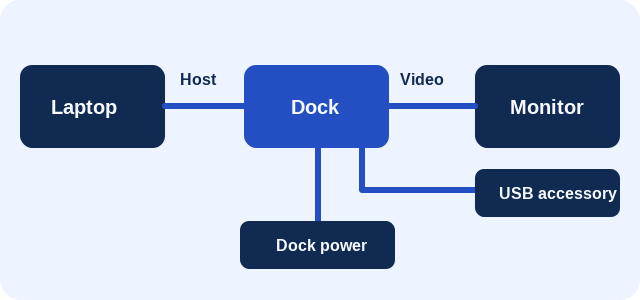 Enlarge diagram (new tab)
USB-C shape does not establish video, data speed or charging.
- Check the dock’s display table for your laptop and operating system. Confirm the number of independent displays, the ports that can be used together and achievable resolution and refresh rate. Verify the Mac’s own display limit separately. A Windows setup that extends two displays may behave differently on Mac.
- If the dock should charge the laptop, compare its documented delivered power with the laptop’s requirements. The dock’s power brick rating is not necessarily the wattage it can pass to the laptop. Check whether the dock requires its own supplied cable or power adapter.
- Verify whether the dock needs software or drivers. Confirm your OS and administrator permissions before relying on a driver-based display solution. Consider whether a direct cable meets your needs before adding a dock.
- In Device Finder, confirm the exact device. In Smart Shopping, check Docking stations and read the evidence and status for each product. Treat conditional requirements as checks to complete and unverified matches as unknown.
Check your work
You can explain how the selected host port, dock, cable, displays and power fit your planned setup using manufacturer evidence.
If you get stuck
If the documentation disagrees or does not cover your model, keep the match unverified. Ask the vendor for written confirmation. A direct connection with an existing known-good video cable can isolate a display problem before you buy anything.
Related learning
- Fix a black, blurry or capped external monitor on Mac
- Fix Wi-Fi on Windows 11 without resetting everything