Workplace Technology Academy · Documents and Cloud Files
Collaborate in Google Workspace and shared drives
Intermediate · 10–20 minutes including practice
Read It
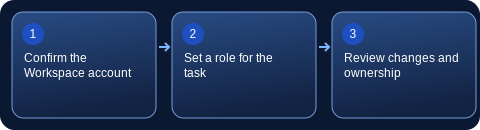
- Confirm the Workspace account. Open Drive under your approved work account. Use a shared drive when provided for team-owned material. Confirm where the document belongs before uploading it.
- Set a role for the task. Open Share on a practice file. Select Viewer, Commenter or Editor only as needed, subject to administrator policy. Have the recipient verify access through their signed-in account.
- Review changes and ownership. In Docs or Sheets inspect Version history where available and use suggestions or comments for proposed changes. Check shared-drive membership before moving ownership-sensitive work.
Practice It
Create a fictional meeting note. Ask a practice reviewer to make a comment without granting edit access. Verify the role after the exercise.
Common mistakes and troubleshooting
Files in a shared drive belong to the team. External sharing, moves and recovery depend on policy and role. Never assume a restricted link opens for everyone.
Official references
Related lessons and assistance
- Technology Essentials 34: Sync files using iCloud, OneDrive, Google Drive and Dropbox.
- Technology Essentials 35: Share cloud links and configure view or edit permissions.
- Technology Essentials 37: Recover deleted items from Recycle Bin, Trash or Recently Deleted.
- Technology Essentials 81: Create, format and save documents in Word, Google Docs and Pages.
- Technology Essentials 83: Build basic spreadsheets in Excel, Google Sheets and Numbers.
- Restrict a Google Drive file shared by link
- Review changes in Google Docs version history
- Make a separate Google Sheets filter view
- Configure cloud storage and keep an offline copy