Workplace Technology Academy · Documents and Cloud Files
Share and recover files in OneDrive and SharePoint
Intermediate · 10–20 minutes including practice
Read It
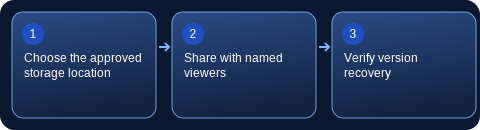
- Choose the approved storage location. Use your organization’s OneDrive for individual work drafts where appropriate and its SharePoint site or team library for material the team owns. Check the selected work account and library first.
- Share with named viewers. In the authorized client or browser, choose Share and select the person and intended access level. Review link settings before copying it. Keep sensitive files restricted.
- Verify version recovery. Open Version history and inspect the available versions where enabled. With permission, compare or restore a test version and check the restored contents and library history.
Practice It
Make a fictional project document, grant a test viewer access, and have an authorized reviewer confirm they cannot edit it.
Common mistakes and troubleshooting
Sync can propagate deletion. Restoring a version changes the current content, and retention and recovery policies vary. Do not move team files to personal storage.
Official references
Related lessons and assistance
- Technology Essentials 34: Sync files using iCloud, OneDrive, Google Drive and Dropbox.
- Technology Essentials 35: Share cloud links and configure view or edit permissions.
- Technology Essentials 36: Back up important data to external drives or the cloud.
- Technology Essentials 37: Recover deleted items from Recycle Bin, Trash or Recently Deleted.
- Share a OneDrive file with view-only permissions
- Restore one Google Drive file from Trash
- Configure cloud storage and keep an offline copy
- Transfer a file between a computer and mobile device