Everyday Technology Workflows · Windows and macOS
Snap or tile windows and switch virtual desktops
Beginner · 10–15 minutes with practice · Windows macOS
Read It
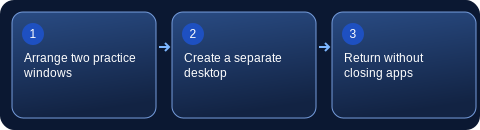
- Arrange two practice windows. Windows 11: use Windows+Left/Right to snap or Windows+Z for layouts. Open Task View with Windows+Tab, choose New desktop, and use Task View to switch.
- Create a separate desktop. macOS Sequoia 15 or later: hover over the green window button and choose a tiling layout where available. Use Mission Control to add and switch Spaces. Older releases offer different Split View controls.
- Return without closing apps. Virtual desktops and Spaces organize windows; connecting a physical monitor is a separate display setup. Some apps cannot tile below their minimum size.
Practice It
Tile a note and browser, then put a second task on a new desktop and return to the first.
Common mistakes and safe recovery
Look for a window on the other desktop before reopening the app. Closing a desktop and quitting an app are separate actions.
Official references
Related lessons
- Technology Essentials 3: Open, resize, minimize, tile and switch between windows or apps.
- Technology Essentials 40: Switch between active apps or browser tabs quickly.
- Technology Essentials 55: Use split-screen or Picture-in-Picture where supported.
- Arrange two windows with Windows 11 Snap
- Create a second Windows desktop
- Move a Windows app to another virtual desktop
- Switch between Windows apps with Alt+Tab