Workplace Technology Academy · Documents and Cloud Files
Build a Microsoft 365 work brief with Word, Excel and PowerPoint
Beginner · 10–20 minutes including practice
Read It
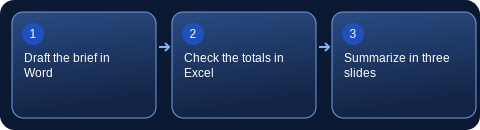
- Draft the brief in Word. In Word desktop or web, draft a one-page update for fictional Harbor Desk. Use the Heading styles and a descriptive title, then save a copy to the approved work location.
- Check the totals in Excel. In Excel enter Item and Cost headers with three sample rows. Apply currency display, calculate =SUM(B2:B4), and compare the total with a manual check. Sort the full range to preserve row associations.
- Summarize in three slides. In PowerPoint, create a title, status and decision slide. Use large text, check reading order and confirm that shared recipients can open the attachments or links. Feature availability varies by app and license.
Practice It
Use sample costs of 20, 35 and 15. Verify that the displayed total is 70 and the slides reflect that same total.
Common mistakes and troubleshooting
If the total differs, check for numbers stored as text or an excluded row. If an export drops layouts or fonts, keep the editable source and inspect a new export.
Official references
Related lessons and assistance
- Technology Essentials 81: Create, format and save documents in Word, Google Docs and Pages.
- Technology Essentials 82: Use headings, bullet lists, page numbers and spellcheck.
- Technology Essentials 83: Build basic spreadsheets in Excel, Google Sheets and Numbers.
- Technology Essentials 84: Enter rows and columns, sort data and use SUM and AVERAGE formulas.
- Technology Essentials 85: Create simple slides in PowerPoint, Google Slides and Keynote.
- Organize a Word document with heading styles
- Calculate expenses in Excel
- Create a three-slide PowerPoint presentation
- Set up desktop email, send an invite and check call permissions