Everyday Technology Workflows · Windows and macOS
Arrange and scale multiple monitors
Beginner · 10–15 minutes with practice · Windows macOS
Read It
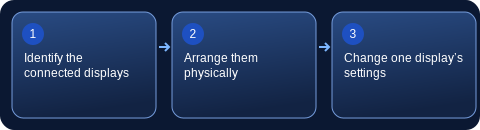
- Identify the connected displays. Windows 11: Settings → System → Display. Identify each monitor, choose Extend if appropriate, and drag the numbered tiles to match their positions. Select one monitor before changing Scale.
- Arrange them physically. macOS: System Settings → Displays. Set a connected display to extend or mirror, then use Arrange where available. Select the target display before changing resolution or text size.
- Change one display’s settings. Check the computer’s supported display count, output capabilities and dock or adapter specifications. A connector’s shape alone does not establish signal or refresh support.
Practice It
Move a test window across the screen boundary and verify the pointer follows the physical layout.
Common mistakes and safe recovery
If the monitor is blank, check input, cable seating and supported settings. Revert changes if text becomes unreadable.
Official references
Related lessons
- Technology Essentials 4: Adjust display brightness, resolution, night shift, dark mode and scaling.
- Technology Essentials 89: Cast or mirror screens to TVs and external displays.
- Match Windows display layout to your desk
- Adjust Windows scaling on one monitor
- Fix a black, blurry or capped external monitor on Mac
- Change your monitor refresh rate in Windows 11
- Smart Shopping: compare monitors