Workplace Technology Academy · Workplace Communication
Prepare for a Teams, Zoom or Google Meet call
Beginner · 10–20 minutes including practice
Read It
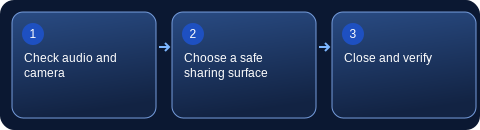
- Check audio and camera. On the approved desktop app or browser, open the join preview and select the correct microphone, speakers and camera. Teams’ test call availability varies. Zoom has a test meeting. Meet offers a pre-join audio and video check.
- Choose a safe sharing surface. If the camera is blank, check the physical shutter, OS privacy and browser permission for the exact approved meeting site. In a test call, share one window or tab instead of your entire desktop where available.
- Close and verify. Confirm the sharing indicator and decide whether system audio is needed. Stop sharing explicitly and verify chat recipients and recording policies.
Practice It
Preview a dummy slide with a colleague in an approved test room. Test mute, camera and screen sharing without presenting private data.
Common mistakes and troubleshooting
If sound echoes, mute one nearby device or use headphones. If a feature is missing, check the host policy or client capability before changing security settings.
Official references
Related lessons and assistance
- Technology Essentials 74: Join Zoom, Teams, Google Meet and FaceTime meetings.
- Technology Essentials 75: Mute and unmute microphones and enable or disable cameras.
- Technology Essentials 76: Test microphones, speakers and cameras before important calls.
- Technology Essentials 77: Share screens, windows or browser tabs during video calls.
- Technology Essentials 78: Use meeting chat, hand-raise, reactions and background blur.
- Review one Android app permission
- Set up desktop email, send an invite and check call permissions
- Review app permissions, notifications and privacy
- Smart Shopping: match the exact model before choosing accessories