Workplace Technology Academy · Security and Remote Work
Set up a remote workstation and troubleshoot an approved VPN
Intermediate · 10–20 minutes including practice
Read It
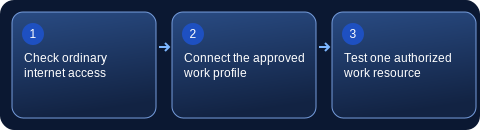
- Check ordinary internet access. Connect to a trusted network and confirm normal Internet access first. On Windows 11 use the installed approved VPN client or a Windows VPN profile only as directed by IT. On macOS use the approved app or managed VPN configuration.
- Connect the approved work profile. Check the VPN status and correct account, then open one known authorized work resource. A VPN can route traffic through a managed network, but destinations and access depend on policy and configuration.
- Test one authorized work resource. Set up a supported headset, display and power source. Take note of the time, symptoms and error wording if a secure service still fails, then contact support.
Practice It
On a test workstation, record the difference between no network, failed VPN sign-in and a connected VPN with one unreachable resource.
Common mistakes and troubleshooting
Avoid unknown VPNs, security bypasses and installing unverified certificates. Do not reset managed profiles or remove endpoint protections.
Official references
Related lessons and assistance
- Technology Essentials 6: Connect to Wi-Fi networks and manage cellular data on mobile.
- Technology Essentials 76: Test microphones, speakers and cameras before important calls.
- Technology Essentials 89: Cast or mirror screens to TVs and external displays.
- Technology Essentials 98: Understand public charging and public Wi-Fi risks and appropriate precautions.
- Technology Essentials 100: Perform basic troubleshooting through safe restarts, cable checks, connectivity checks and app restarts.
- Fix Wi-Fi on Windows 11 without resetting everything
- Fix Wi-Fi on Android, starting with Google Pixel
- Fix a black, blurry or capped external monitor on Mac
- Recover a frozen app, failed update or network connection
- Arrange and scale multiple monitors
- Smart Shopping: match the exact model before choosing accessories