Workplace Technology Academy · Onboarding and Workstations
Complete new-hire technology orientation
Beginner · 10–20 minutes including practice
Read It
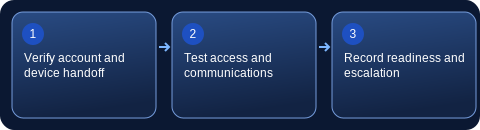
- Verify account and device handoff. Day one: verify the assigned device and asset ID, official help contacts and the initial sign-in instructions. Confirm the correct work account, screen lock and approved MFA enrollment.
- Test access and communications. Test mail, calendar, a sample call, the team’s approved file location, any required VPN, and printing if needed. Use non-sensitive examples and follow local policy for each service.
- Record readiness and escalation. Week one: review approved storage, software updates, phishing reporting and remote-work equipment. Record issues, who owns the next step, and the approved escalation route without keeping secrets in the checklist.
Practice It
Use the reusable checklists below to rehearse the first week for fictional Harbor Desk.
Checklist marks stay on this page. Print a blank copy or save one through your browser’s print dialog.
Day one checklist
Week one checklist
Common mistakes and troubleshooting
Do not ask a new hire to share credentials or enroll a personal device without verified instructions. Stop and contact the organization if a profile’s scope is unclear.
Official references
Related lessons and assistance
- Technology Essentials 11: Understand user accounts, guest access and sign-out options.
- Technology Essentials 12: Install system updates and reboot when prompted.
- Technology Essentials 13: Install and uninstall apps safely from official stores or trusted sources.
- Technology Essentials 61: Set up an email account across desktop and mobile apps.
- Technology Essentials 72: Create and update calendar events, locations and invitations.
- Technology Essentials 93: Enable two-factor or multi-factor authentication.
- Technology Essentials 95: Lock devices using strong passcodes, PINs or biometric authentication.
- Read Windows 11 Update History
- Turn on Google Account 2-Step Verification
- Set up a work or school account safely
- Set up desktop email, send an invite and check call permissions
- Manage startup apps, free storage and update your system