Quick guides
Learning Library · Ports and safety examples
Take a screenshot
Windows · Beginner · About 5 min to try the steps
Capture part of your screen in Windows 11.
- Press Windows + Shift + S.
- Drag across the area you want to capture.
- Select the notification to open Snipping Tool, then save your image.
Select an area on screen- Windows + Shift + S
- Drag across the area
- Open the preview and save
Use a disposable window for practice.
Back to guide list
Make startup faster
Windows · Beginner
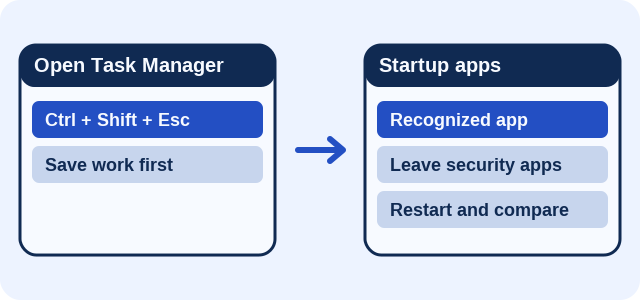
Manage apps that open automatically.
- Open Settings, then Apps, then Startup.
- Look for apps you recognize and do not need at startup.
- Turn those apps off. Leave security and unfamiliar system software enabled. Restart to test.
Check one optional app at a time- Settings
- Apps
- Open Startup
 Enlarge diagram (new tab)
Keep security software enabled.
Back to guide list
Fix missing sound
Windows · Beginner
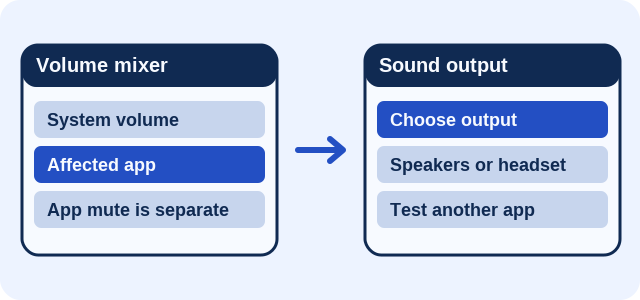
Check basic audio settings.
- Click the speaker icon on the taskbar and raise the volume.
- Open Settings > System > Sound and choose the correct output device.
- Check whether headphones or Bluetooth speakers are connected. Test another app.
Check app level before output- Volume mixer
- Sound output
- Test another app
 Enlarge diagram (new tab)
An app can be muted even when its output is right. Test at a comfortable level.
Back to guide list
Take a screenshot
Mac · Beginner · About 5 min to try the steps
Save an image of your Mac screen.
- Press Command + Shift + 4.
- Drag to select an area, then release.
- Look for the screenshot on your desktop unless you changed its save location.
Capture part of the screen- Command + Shift + 4
- Drag to select
- Release to capture
Look on the desktop unless you changed the save location.
Back to guide list
Find files with Spotlight
Mac · Beginner
Quickly locate a file or app.
- Press Command + Space.
- Type a file name or app name.
- Choose the correct result and press Return.
Find the right copy- Command + Space
- Type a filename
- Check the result before opening
Check the folder if more than one result has the same name.
Back to guide list
Check available storage
Mac · Beginner
Find out what is taking up space.
- Open Apple menu > System Settings.
- Select General > Storage.
- Review large files and apps. Back up important files before deleting anything.
Check the space summary- System Settings
- General
- Open Storage
Review the categories before removing files.
Back to guide list
Check iPhone storage
iPhone · Beginner
See what is filling your device.
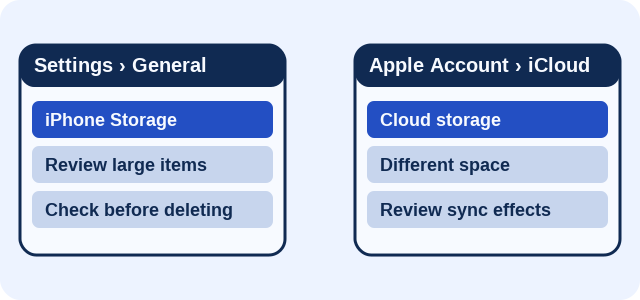
- Open Settings > General > iPhone Storage.
- Wait for the storage list to load.
- Review recommendations. Back up important photos and files before deleting them.
Find the device total- Settings
- General
- Open iPhone Storage
 Enlarge diagram (new tab)
Cloud storage is separate.
Back to guide list
Scan a document
iPhone · Beginner
Use the built-in Notes app.
- Open Notes and create a note.
- Tap the attachment or camera icon, depending on your OS version, then Scan Documents.
- Position the page in view, capture it, then tap Save.
Capture the whole page- Notes
- Attachment or camera menu
- Tap Scan Documents
Adjust the corners, then check the saved scan.
Back to guide list
Make text easier to read
iPhone · Beginner
Increase text size on Apple mobile devices.
- Open Settings > Display & Brightness.
- Tap Text Size and adjust the slider.
- For additional sizes, open Accessibility > Display & Text Size > Larger Text.
Preview larger text- Settings
- Display & Brightness
- Tap Text Size
Use accessibility options if the normal slider is insufficient.
Back to guide list
Manage notifications
Android · Beginner
Reduce distracting app alerts.
- Open Settings > Notifications.
- Find App notifications or a similar menu.
- Select an app and turn off unwanted alerts. Keep important security and emergency alerts enabled. Menus vary by phone.
Change one app at a time- Settings
- Notifications
- Open App notifications
Leave emergency and security alerts on.
Back to guide list
Check battery usage
Android · Beginner
Find apps that use the most battery.
- Open Settings and search for Battery usage.
- Review the list of apps and recent usage.
- Consider reducing unnecessary background activity. Avoid restricting apps you rely on for important alerts.
Identify the biggest users- Settings
- Battery usage
- Review the app list
Protect apps you rely on for critical alerts.
Back to guide list
Make text larger
Android · Beginner · About 5 min to try the steps
Improve readability on your phone.
- Open Settings and search for Font size.
- Adjust the font size slider.
- If available, adjust Display size too. Menu names vary by manufacturer.
Make text easier to read- Settings search
- Font size
- Move the slider
Display size, where offered, changes more than the text.
Back to guide list
Recognize a scam email
Online safety · Beginner
Spot suspicious messages before clicking.
- Check the actual sender address, not just the display name.
- Be cautious of urgent payment demands and unexpected attachments.
- Open the known official website yourself instead of using suspicious links. Report the message if appropriate.
Inspect a suspicious message- Sender
- Request
- Verify elsewhere
Use a contact method you already trust. Never use links the message supplies.
Back to guide list
Enable two-step verification
Online safety · Beginner
Add another layer of account protection.
- Open the security settings of an account using its official app or website.
- Find two-step verification or multifactor authentication.
- Choose a passkey or authenticator if supported. Store recovery codes securely and never share them.
Add a second sign-in check- Official account settings
- Security
- Enable two-step verification
Save recovery codes privately and check recovery before logging out.
Back to guide list
Write your first AI prompt
AI · Beginner
Learn how to ask for useful answers.
- Open a trusted AI assistant.
- Describe your goal, for example: Explain how to take a screenshot on Windows 11 for a beginner.
- Ask for numbered steps and verify important information. Never paste passwords or confidential information.
Ask a focused question- Goal
- Context
- Request a format
Use a harmless example and verify the answer.
Back to guide list
Check network configuration
Windows · Advanced
Inspect your network settings without changing them.
- Open Terminal or Command Prompt.
- Run ipconfig /all to inspect adapters, addresses and DNS settings.
- Do not post the full output publicly; it may contain network details.
Read connection information- Check Wi-Fi
- Confirm network name
- Check connection details
A Wi-Fi connection does not prove the internet works.
Back to guide list
Check disk space in Terminal
Mac · Advanced · About 5 min to try the steps
Inspect free disk space using a read-only command.
- Open Terminal from Applications > Utilities.
- Run df -h to see filesystem usage.
- Review the Available column; do not delete system files.
Read free space without changing files- Open Terminal
- Enter df -h
- Read the Available column
This command reports usage and does not delete anything.
Back to guide list
Restart your home router
Networking · Beginner
Recover from a temporary connection problem.
- Check whether other devices have the same problem.
- If you own the router, unplug its power for 30 seconds and reconnect.
- Wait for it to reconnect; avoid pressing the factory reset button.
Restart without erasing settings- Check for an outage
- Restart your own router
- Wait and retest
Leave the factory reset control untouched.
Back to guide list
Plan a compatible PC
PC Building · Intermediate
Create a parts checklist before buying.
- Choose CPU and motherboard with matching socket and supported BIOS.
- Check RAM generation, case size, cooler clearance and graphics card dimensions.
- Check power supply wattage and required connectors against manufacturer guidance.
Check the build as a system- CPU + board
- Memory and clearance
- Power and cooling
Confirm exact part numbers against manufacturer support lists.
Back to guide list
Find an email in Outlook
Microsoft 365 · Beginner
Search for a message without scrolling.
- Open Outlook and locate the search box.
- Enter a sender name or a distinctive subject word.
- Use available filters to narrow results by date or folder.
Find one matching message- Search
- Sender or subject
- Narrow the scope
Try fewer words if the search is too narrow.
Back to guide list
Check a suspicious link
Online safety · Beginner
Avoid opening unexpected web links.
- Do not click the message link.
- Open the official website using a known address or bookmark.
- Ask the organization through a trusted contact method if the message is real.
Check where a link leads- Pause
- Check the actual domain
- Verify independently
Leave suspicious links unopened and use an official bookmark instead.
Back to guide list
Check iPad storage
iPad · Beginner
Find what uses space on your tablet.
- Open Settings > General > iPad Storage.
- Wait for the list to load and review large apps.
- Back up important files before removing anything.
Read available space- Settings
- General
- Tap iPad Storage
Check app categories before removing anything.
Back to guide list
Take a screenshot on iPad
iPad · Beginner · About 5 min to try the steps
Capture what is on your screen.
- On an iPad without a Home button, press the top button and either volume button together briefly.
- On an iPad with a Home button, press the top and Home buttons together briefly.
- Find your screenshot in Photos.
Choose buttons for your model- Top + Volume on Face ID
- Top + Home on Home-button models
- Press together and release
Look for the thumbnail after taking the screenshot.
Back to guide list
Make text larger on iPad
iPad · Beginner · About 5 min to try the steps
Read comfortably on your tablet.
- Open Settings > Display & Brightness > Text Size.
- Adjust the slider to a comfortable size.
- For additional options open Accessibility > Display & Text Size.
Increase readable text- Settings
- Display & Brightness
- Tap Text Size
Check an app that supports Dynamic Type.
Back to guide list
Switch between apps
iPad · Beginner
Move between open apps.
- Swipe up from the bottom and pause to open the app switcher.
- Swipe sideways to locate the app.
- Tap its preview to return to it.
Switch using the App Switcher- Swipe from bottom and pause
- Find the app card
- Tap the card
Menu gestures and button alternatives depend on the model.
Back to guide list
More tutorials and articles